


If you've searched the Chrome Web Store for browser sharing extensions, you won't find them. Google doesn't allow extensions that share browser sessions with third parties - even if the sharing is voluntary, sandboxed, and controlled by the user.
This doesn't mean the extension is unsafe. Many legitimate enterprise and development tools are distributed outside the Web Store: corporate security tools, internal company extensions, development utilities, and specialized automation tools.
Why not the Web Store?
Google's Chrome Web Store policies prohibit extensions that allow remote access to the browser. This is a blanket policy designed to prevent malicious remote access tools. Browser sharing extensions - even ones with strong isolation and user consent - fall under this policy. The result: browser sharing extensions are distributed as CRX files or ZIP archives that users install manually through Chrome's Developer Mode.
Is manual installation safe?
Installing via Developer Mode is exactly as safe as from the Web Store - the extension runs in the same Chrome sandbox with the same permission model. The only difference is that Web Store extensions are reviewed by Google before listing. Manual extensions are not. This means you should only install extensions from sources you trust.
Step-by-step installation
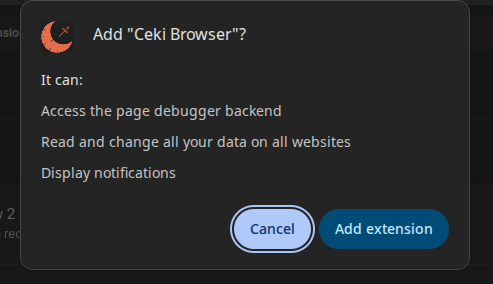
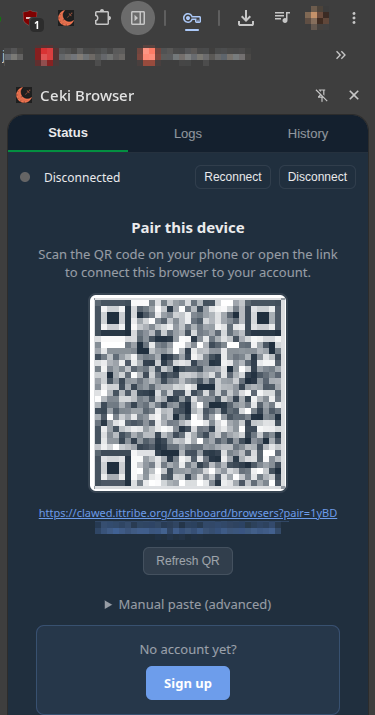
The installation process takes about 2 minutes: Download the extension file (CRX in ZIP recommended). Open chrome://extensions, enable Developer mode, drag the CRX file onto the extensions page. Confirm the installation. The extension icon appears in your toolbar. After installation, the extension automatically checks for updates.